
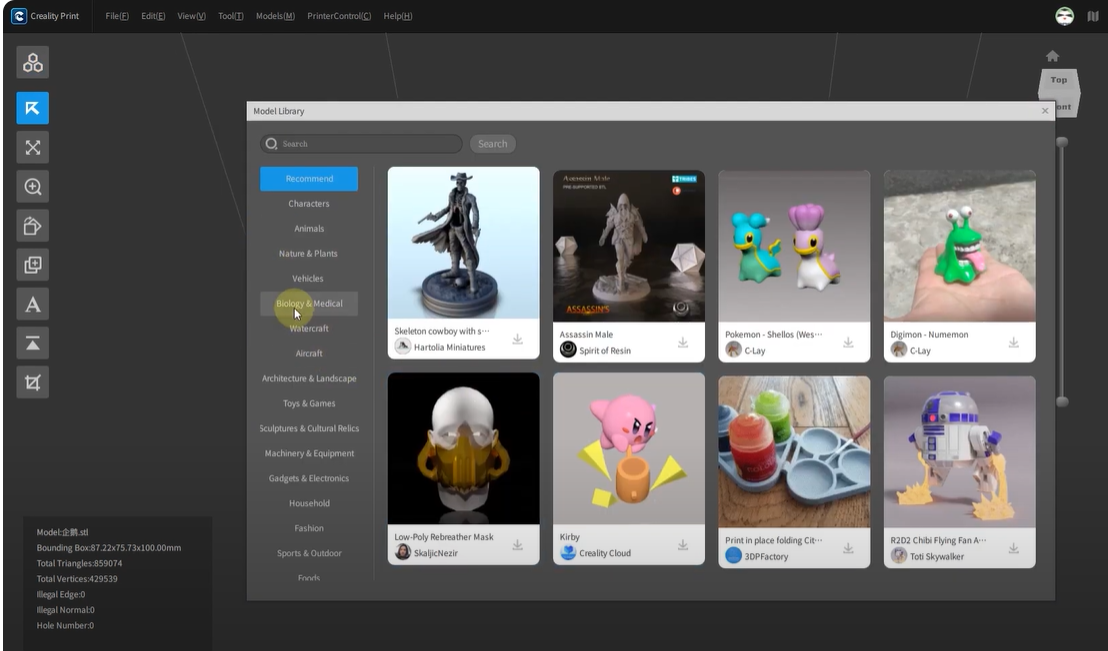
About Creality Slicer
Creality Slicer is the official slicing software developed and maintained by Creality, the globally acclaimed manufacturer behind popular 3D printer models such as the Ender 3, Ender 5, CR-10, CR-6 SE, and more. This specialized slicing software is precisely engineered to optimize print quality, accuracy, speed, and overall reliability for Creality’s extensive printer lineup. Creality Slicer streamlines your 3D printing workflow by seamlessly converting your digital 3D models, including STL, OBJ, and AMF file formats, into precise, printer-ready G-code files that guarantee professional-quality prints with every use.
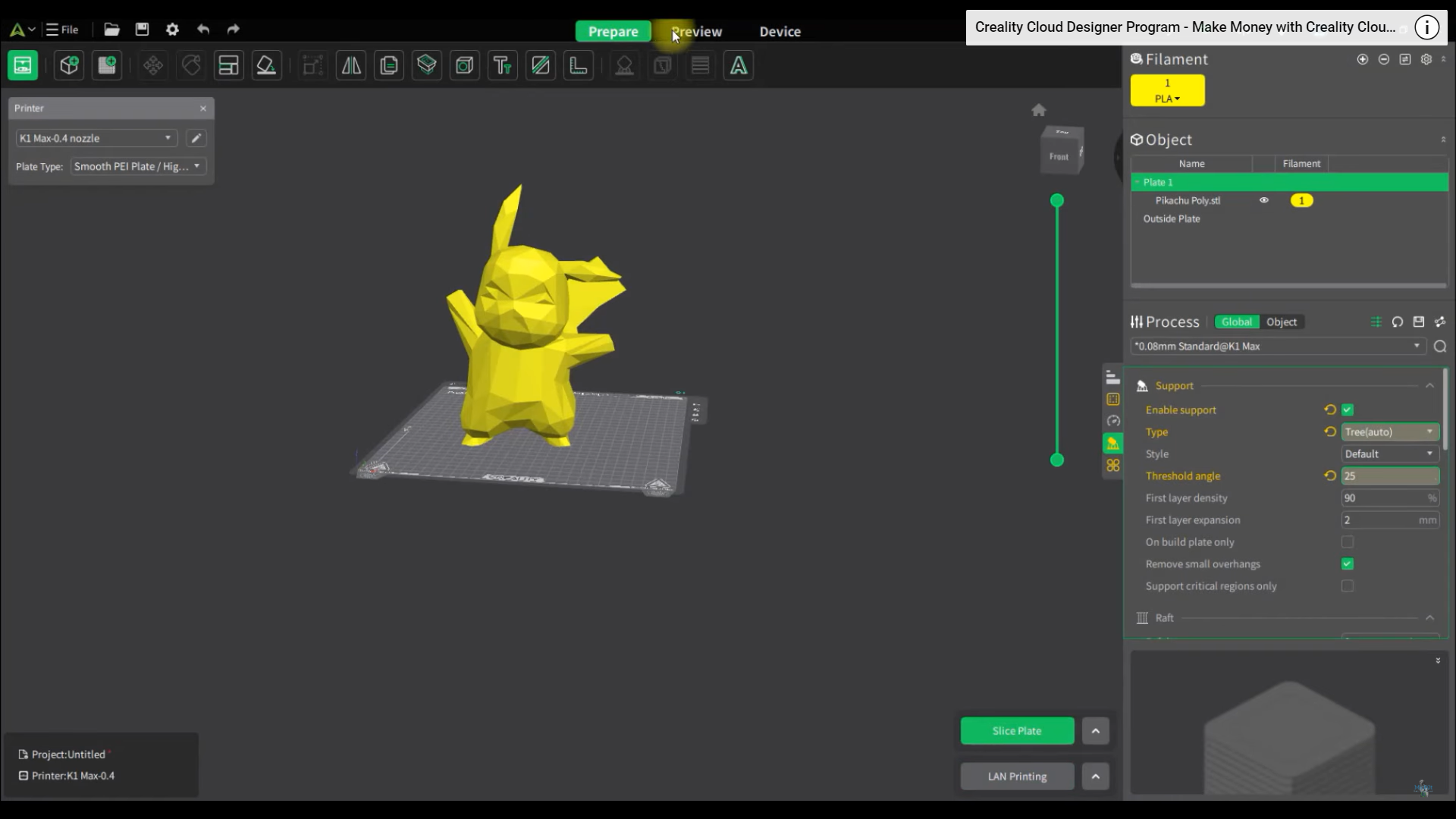
Built with user-friendly, intuitive settings and pre-loaded slicing profiles, Creality Slicer is uniquely optimized for each specific Creality printer, eliminating guesswork and ensuring top performance right from installation. It incorporates powerful tools such as automatic model repair, advanced support structure generation, adaptive layer height adjustments, and seamless firmware updates, significantly enhancing your 3D printing capabilities. Additionally, the built-in visualization tools allow you to thoroughly inspect and preview your sliced models layer by layer before printing, enabling early identification and correction of potential issues.
Creality Slicer is also consistently updated with new features, performance improvements, and bug fixes directly from the Creality engineering team, reflecting continuous innovation and support for the growing community of makers. Completely free to download, this software is perfect for both beginners seeking simplicity and advanced users demanding precision and customization options.
Download Creality Slicer today and transform your 3D printing experience with enhanced efficiency, superior print quality, and dependable results delivered directly from Creality, the trusted leader in 3D printing technology.
Features of Creality Slicer
Pre‑Programmed Printer Profiles
A full library of Creality printer & filament profiles for Ender, CR, K-series—tuned for flawless print quality, speed, and reliability, no manual setup needed.
Fast & Advanced Dual Mode
Print in one click with Fast Mode or unlock every detail with Advanced—giving total control over speeds, supports, infill, and pro tweaks.
Intelligent Support Structures
Automatically create, preview, or manually paint supports where you need them—cutting material waste and boosting print success.
Layer Preview & Path Inspection
Inspect every layer, toolpath, and Z-seam in crisp detail. Spot errors, optimize supports, and print with confidence before starting.
Advanced Print Optimization
Adaptive infill, fuzzy skin, wireframe, and smart speed—maximize quality, save material, and finish jobs faster, every time.
Plugin Marketplace
Instantly expand with plugins—add new slicers, mesh repair, custom file support, or automate your workflow without leaving the app.
Ultra-fast Slicing Engine
Blazing fast slicing—up to 3× quicker than older versions. Handle big files and complex shapes with ease and minimal waiting.
Cloud & Remote Print
Connect to Creality Cloud for upload, fleet management, live monitoring, and time-lapse—all from your Slicer dashboard.
Seamless Printer Connectivity
SD card plug-and-play or direct USB/serial—live print control, firmware updates, and rock-solid hardware integration, every print.
- Windows 10/11, macOS 10.15+, or Ubuntu 20.04+
- 4 GB RAM (8 GB recommended)
- Intel/AMD 64-bit CPU
- 500 MB free disk space
- OpenGL 4.1+ compatible graphics
What's new in Creality Print 7.3.0
Creality Print v7.3.0 Release Notes
Creality Print 7.3.0 focuses on enhancing full-color and multi-color printing, further refining the complete workflow from color reproduction and color separation to mixed-color and gradient printing. We have also optimized purge waste utilization in multi-color printing, allowing a portion of purge material to be reused as internal infill where the model structure and available infill space allow, helping reduce material waste.
This release also introduces multi-nozzle, multi-diameter printing support for K3, Adaptive TPMS Infill, ZAA anti-aliasing, improved auto-orientation performance, faster slicing, and AI enhancements, further improving print quality, efficiency, and the overall user experience.
Full-Color & Multi-Color Printing Enhancements
Accurate Color Reproduction
Automatically matches target colors in the model to available filaments and generates optimized color-mixing combinations, reducing the need for repeated manual color-ratio adjustments and helping achieve printed colors closer to the original design.
Two color-separation modes are available based on the selected filaments: use the existing filaments in the current filament list, or use a standard CMYW/RYBW filament set for color separation and matching.
Color prediction now uses a new algorithm based on measured filament spectral data. By incorporating actual spectral characteristics into color prediction, the algorithm can more accurately estimate printed colors and reduce color deviation.
In 36 sets of CMYK color-mixing tests, the predicted colors achieved an average ΔE00 of 2.85, compared with 8.63 using the traditional algorithm. Lower ΔE00 values indicate closer color matching between the predicted and printed colors. This algorithm has been validated with filaments such as Hyper PLA.
Note: ΔE00 is a metric used to quantify perceptual color difference. A lower value indicates a closer match between the predicted and printed colors.CIEDE2000 Color Difference)
One-Click Color Separation for OBJ Models
Import OBJ models containing color information and automatically convert the embedded colors into editable painting data. Creality Print then matches the model colors with available filaments, significantly reducing the manual work required for coloring and filament assignment.
Flexible Gradient Color Control
Added gradient color support, allowing model colors to transition progressively based on print height or a specified region, creating richer color effects than single-color printing.
Users can freely add color anchors within a selected height range and define the gradient transition. Creality Print automatically generates the corresponding color changes based on the number of printing layers, making it suitable for models such as skies, flames, decorative objects, and artistic prints.
Multi-Color Printing: Purge Waste Reduction
Optimized Purge to Object Skeleton
This release further optimizes Purge to Object Skeleton, with the goal of reducing purge waste and improving filament utilization.
During slicing, Creality Print identifies hidden internal infill areas that can safely receive purge material and prioritizes these areas for reusing purge material as part of the internal structure. This allows more filament to contribute to the printed model while reducing material used solely for the wipe tower.
Purge to Object Skeleton Enabled (New Algorithm)
Model: 513.10 g
Purge: 28.81 g
Wipe Tower: 21.93 g
Total Filament: 563.85 g
Total Time: 15h 56m
All Default Settings
Model: 403.40 g
Purge: 199.02 g
Wipe Tower: 18.58 g
Total Material: 620.99 g
Total Time: 16h32m
How It Works
During slicing, the system:
- Calculates the actual purge volume required based on the colors and filaments involved in each color change.
- Identifies available internal skeleton space within each model layer.
- Allocates purge material to hidden internal infill where it can be safely reused.
- Preserves protective layers around visible surfaces, including outer walls, top surfaces, and bottom surfaces, to reduce color contamination.
- Dynamically adjusts the capacity available for receiving purge material when internal space is limited.
- Sends any remaining purge material that cannot be safely reused to the wipe tower for final cleaning.
Benefits
Converts part of the material that would otherwise be used in the wipe tower into internal model structure.
Reuses purge material as part of the printed model instead of discarding it entirely.
Keeps purge paths primarily within the model interior while maintaining normal color paths on visible surfaces.
Does not simply eliminate the wipe tower. For the first layer, areas near top/bottom shells, regions with insufficient skeleton capacity, or higher-risk areas, external purging is retained to prioritize print quality and color-change reliability.
Design Principle
Purge to Object Skeleton is not simply about moving waste into the model. It balances available model space, color purity, layer stability, and color-change reliability:
- Reuse purge material whenever sufficient internal space is available.
- Continue using the wipe tower when internal capacity is insufficient.
- Prioritize color quality in areas where purge material could affect the appearance.
- Maintain consistent layer print times in areas where purge placement could otherwise introduce visible layer artifacts.
The goal is to reduce purge waste as much as possible without compromising model appearance or print reliability.
Recommended Use
Recommended for:
- Models with sufficient internal infill space.
- Full-plate jobs with multiple models.
- Models with a clear separation between visible surfaces and internal structures.
- Multi-color jobs with frequent color changes and high wipe-tower consumption.
Use with caution for:
- Solid models.
- Models with thick walls but very limited internal infill space.
- Thin-wall models.
- Models with strict weight, strength, or internal-structure requirements.
- Models with a high risk of color bleeding.
Slicing Performance & Algorithm Enhancements
Improved Auto-Orientation Performance
Optimized auto-orientation performance by introducing GPU acceleration to replace the previous CPU-based computation. For complex models, auto-orientation calculations are significantly faster, reducing typical wait times from 1–2 minutes to a few seconds and improving model preparation efficiency.
Improved Slicing Performance
Optimized large 3MF file loading and slicing workflows to improve processing efficiency for complex models and full-plate multi-color jobs:
- Large 3MF files for full-plate models open approximately 50% faster.
- Slicing time for high-infill single models and full-plate models is reduced by approximately 10%.
- Optimized re-slicing after parameter changes. In full-plate multi-color model scenarios, re-slicing time is now close to the initial slicing time.
New Adaptive TPMS Infill
Added Adaptive TPMS (Triply Periodic Minimal Surface) Infill, which automatically generates a 3D infill structure with a continuous density gradient based on the distance from each internal region to the model surface.
Supports dense-outside/sparse-inside, approximately uniform, and sparse-outside/dense-inside configurations. This provides enhanced surface support while maintaining lightweight internal structures, making it suitable for lightweight structures, cushioning components, handles, and other applications.
New ZAA Anti-Aliasing
Added ZAA (Z Anti-Aliasing), which locally adjusts the Z height of toolpaths on curved and sloped top surfaces to better conform to model geometry and reduce stair-stepping, improving surface quality on domes, chamfers, and shallow slopes.
New parameters include:
- Minimum Wall Downward Slope — Controls the minimum slope at which top outer walls participate in ZAA adjustment.
- Slice Plane Z Offset — Adjusts the reference plane used for ZAA calculations to control the height offset of toolpaths relative to the model surface.
- Lock Top Surface Infill Direction — Keeps the top-surface infill direction consistent in ZAA regions to avoid alternating patterns between adjacent layers.
ZAA is primarily intended for curved surfaces, domes, slopes, and chamfers. It may slightly increase slicing time and can affect local toolpaths and layer heights. Preview the toolpaths before printing. Due to Z-axis speed limitations, a print speed of approximately 150 mm/s or lower is recommended for better results.
New Continuous Short-Segment Protection
Added protection for certain Klipper devices that may experience stuttering, crashes, or MCU errors when printing models containing highly dense short segments.
When unusually dense short paths are detected, Creality Print automatically simplifies the toolpath and appropriately reduces local acceleration to reduce processing pressure and improve print stability.
- Reduces the risk of device crashes caused by dense short segments.
- Optimizes G-code path counts to reduce pressure on the Klipper motion queue.
- Activates only when high-density short-segment regions are detected.
- Does not affect normal models or standard printing paths.
This feature is particularly useful for models containing large numbers of fine segments, dense infill, or complex curved surfaces. Local printing speed may be slightly reduced, which can increase total print time.
For SPARKX i7 users: If you encounter XS2000 print failures, use Creality Print 7.3 together with firmware version 1.1.4.0.4.
K3 Multi-Nozzle Printing
To support K3 multi-nozzle printing with different nozzle diameters, the slicing software configuration format has been updated. Versions earlier than Creality Print 7.3 no longer support K3 printing. K3 users should update to Creality Print 7.3 or later.
Multi-Nozzle Printing with Different Diameters
Creality Print 7.3 adds support for K3 multi-nozzle printing with different nozzle diameters. Users can configure different nozzle sizes for individual extruders based on model detail and printing efficiency requirements and use them together within the same print job.
- Flexible nozzle combinations: Supports standard 0.2 mm, 0.4 mm, 0.6 mm, and 0.8 mm nozzle presets.
Balance detail and efficiency: Use smaller nozzles for detailed areas and larger nozzles for large or strength-critical regions.
Independent parameter configuration: Different nozzles can use their corresponding machine, process, and filament parameters.
Automatic compatibility checks: Automatically checks whether the selected layer heights are within the supported range of each nozzle and provides clear warnings for incompatible configurations.
Flexible filament-to-nozzle assignment: Quickly assign filaments to specific extruders and nozzles through the filament grouping interface.
Re-adjust after preview: Review toolpaths, supports, and the wipe tower after slicing, then regroup filaments and re-slice if needed.
Strict validation before printing: Filament mapping is checked against the actual nozzle diameters installed on the device to prevent print jobs from being sent to incompatible nozzles.
Workflow
- Add K3 and select the nozzle diameter for each extruder.
- Check the corresponding machine, process, and filament parameters.
- Click Slice Plate to complete filament and nozzle grouping.
- Review toolpaths, supports, and the wipe tower in Preview.
- Click Send to Print to complete device-side filament mapping.
- Confirm the configuration and start printing.
Usage Notes
Multi-nozzle printing with different nozzle diameters is currently an experimental feature. Printing quality risks may remain for the wipe tower, supports, and certain model surfaces. The 0.2 mm, 0.6 mm, and 0.8 mm nozzle parameters have not yet been fully validated across all scenarios. We recommend testing with simple models first.
New Nozzle Preheating
Added nozzle preheating to reduce waiting time during multi-nozzle switching.
The system identifies the next nozzle to be used and preheats it while the current nozzle continues printing. Once the nozzle switch is complete, the target nozzle can enter the printing state more quickly, resulting in smoother transitions during multi-color printing.
Preheating is automatically scheduled based on the toolpath and estimated tool-change time, helping reduce waiting time while maintaining temperature control and printing stability.
Filament Assignment by Print Structure
Added the ability to assign different filaments to specific print structures, including:
- Walls
- Infill
- Solid infill
- Wipe tower
Users can assign specific filaments to different structures according to their printing requirements, enabling more flexible combinations of functionality, appearance, and print performance.
AI Enhancements
AI Assistant Upgrade with DeepSeek Harness
Integrated the open-source DeepSeek Harness Agent framework to upgrade the underlying architecture of the AI Assistant, improving its ability to understand questions, process tasks, and provide more accurate responses.
Improved AI Parameter Recommendations
Optimized AI-recommended parameters to improve recommendation accuracy.
More Features & Experience Improvements
New Corner Rib Type for Wipe Tower
Added Corner Rib as a new wipe-tower outer-wall type. Users can select this structure in the wipe-tower settings.
The corner-rib structure improves the support and stability of the wipe tower, helping reduce movement and deformation during printing and improving material-switching stability in multi-color and multi-filament printing.
Preserve Color and Print Settings After Model Cutting
Optimized information inheritance after model cutting. When cutting a model with existing color painting, supports, seams, or fuzzy surface settings, the resulting sub-models can retain the corresponding settings, reducing the need for repeated configuration.
Improved WAN Printing Experience
Improved WAN print-sending speed and fixed issues that could cause print-sending failures.
AI Creation
Added a shortcut to AI Creation, providing one-click access to the AI-powered creation workflow.
Fixes
- Fixed an issue where the application could be incorrectly flagged by the firewall after an in-app update.
- Fixed an issue where Smart Infill could penetrate the outer walls on certain models.
- Fixed inconsistent build-plate colors between Light and Dark modes.
- Fixed an issue where Chinese input could not be switched in the relief-text input field on macOS.
- Fixed an issue where manually drawn brims were not retained after saving and reopening a project.
- Fixed an issue where previously bound devices could appear as unbound after restarting the application.
- Fixed an issue where the machine status was not updated after confirming a third-party file import.
- Fixed an issue where color information was not retained after cutting a model.
- Fixed an issue that prevented printing with Creality Box 2.0.
- Fixed an issue where the application window could extend beyond the screen when running full-screen on a 1440p secondary monitor.
- Fixed an issue where dragging a file into the application did not respond the first time after an in-app update.
- Fixed filament-mapping lag.
- Fixed an issue where the purge matrix was not recalculated after switching printers.
- Fixed inaccurate model dimensions after model upload.
- Fixed an issue where extrusion flow was incorrectly displayed in Preview during travel moves without extrusion.
- Fixed inconsistent error messages between AI Version and Professional Version.
- Fixed an issue where slicing could become stuck while detecting overhangs in preparation for automatic Z lift.
- Fixed an issue where devices could not be added from the onboarding page when the installation path contained Chinese characters.
- Fixed a macOS crash when enabling travel moves in Preview after slicing a model.
- For crashes occurring during slicing on certain multi-threaded processors, refer to the wiki guide.
Release notes from the GitHub release page, published September 24, 2026.